
Test your agent
Hear your agent in action before you go live — call it or chat to it and check how it responds.
Before your agent starts answering real customers, take it for a test drive. Testing lets you hear exactly what a caller hears, ask it the questions your customers ask, and fix anything that doesn't sound right — all before a single real call comes in.
You'll find this as the last step, Test your agent, in the agent setup checklist.
Save first
A test always runs your agent's saved settings. If you've just made a change, click Save before testing — otherwise you'll be testing the old version. The page reminds you with a yellow banner and a Save agent button if there's anything unsaved.
Two ways to test
There are two ways to try your agent. Both connect you to the exact agent you've built — pick whichever is easier.
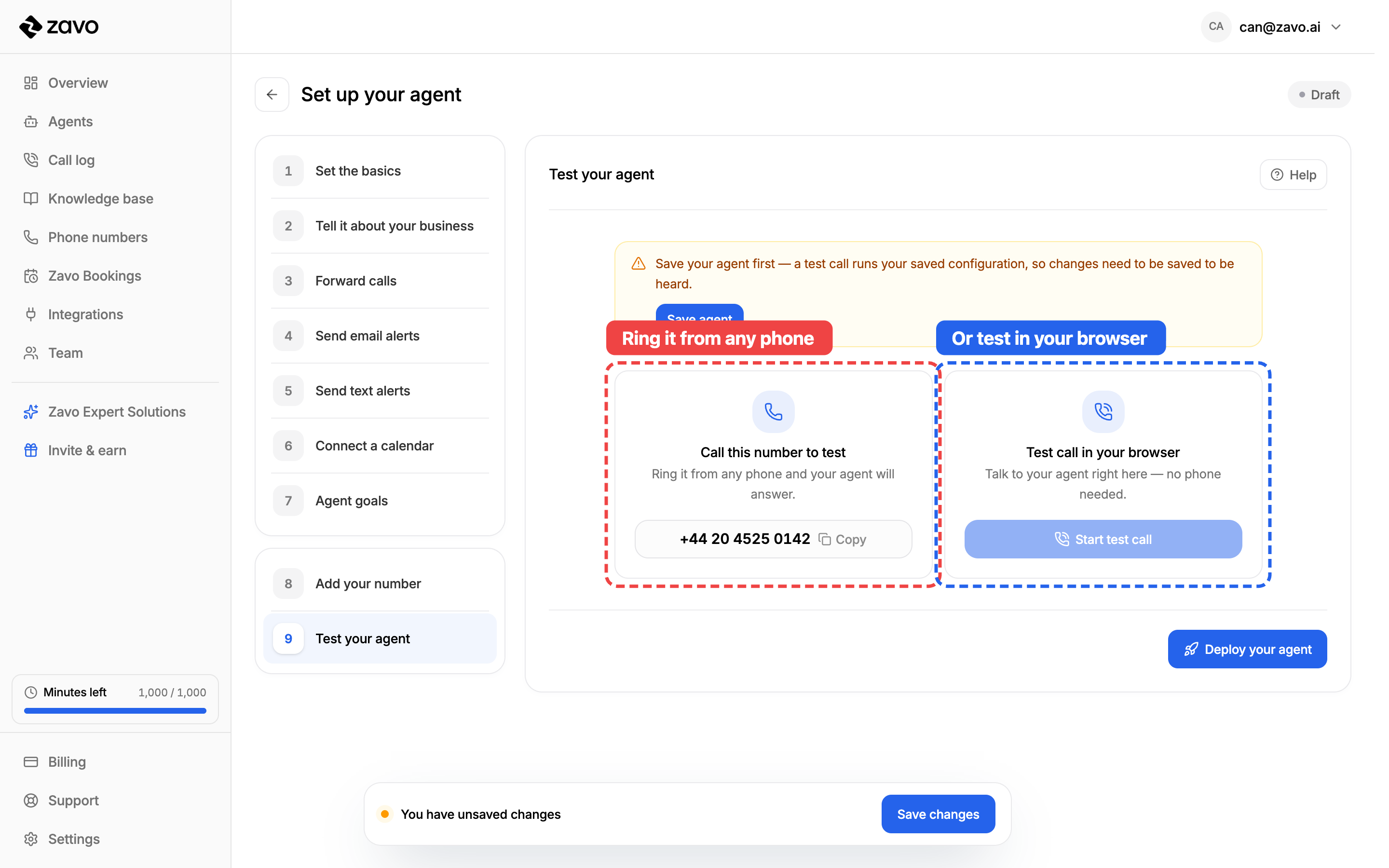
- Call this number to test — a phone number you can ring from any phone. Tap Copy, dial it from your mobile, and your agent picks up and talks to you, just like a real customer would.
- Test call in your browser — click Start test call to talk to your agent right there on the screen, with no phone needed. Great for a quick check.
Testing in your browser
When you click Start test call, a call window opens and connects you to your agent. From here you can:
- Talk to it. Use the microphone button to speak, just like a phone call — your agent listens and replies out loud. Tap the mic again to mute yourself.
- Type instead. Prefer to type? Use the message box at the bottom to send text and read your agent's replies — handy if you're somewhere you can't talk.
- Follow the conversation. Everything said — by you and by your agent — appears as a live transcript, so you can read back exactly how it answered.
- Hang up with the red button whenever you're done.
The in-browser test call needs an active subscription. If you're not on a plan yet, you'll see a prompt to subscribe — the Call this number option above works the same way for trying your agent out.
What to check for
Treat it like a real call and try the things your customers will:
- Ask your common questions — opening hours, prices, "do you do X?" — and check it answers correctly from your knowledge base.
- Test your forwarding — say the thing that should put you through to a person ("can I speak to Emily?") and make sure the call is forwarded to the right place.
- Try to trip it up — ask something unexpected and see how gracefully it handles it.
- Listen to the voice and greeting — does it sound the way you want, and introduce itself correctly?
If something's off, go back to the relevant step, make your change, save, and test again. Keep going until it feels right.
Ready to go live
Happy with how it sounds? You're done testing. The final step is to deploy your agent and point a real phone number at it — see Take your agent live. 🎉
Test any time
Testing isn't just for setup. After you've gone live, come back and test whenever you change something — it's the quickest way to be sure an update sounds right before your customers hear it.
Tips for a good test
- Always save before you test. It's the most common reason a change "didn't work" — the test ran the last saved version.
- Test the way your customers call. Use real questions and a real phone if you can, so you hear what they'll actually hear.
- Test again after every change. A quick browser call takes seconds and catches surprises before they reach a customer.
8. Connect your number to your agent
Point a phone number at the agent that should answer it — a couple of clicks on the Phone numbers page. Step by step, with pictures.
10. Take your agent live
The final step — deploy your agent so it starts answering real calls on your number. Two clicks, step by step.