
Call forwarding
Let your agent hand a live call to a real person when it needs to — step by step, with pictures.
Most calls your agent can handle on its own. But sometimes a caller needs a real person — a specific colleague, your support line, or whoever deals with refunds. Call forwarding is how your agent puts them through.
You tell your agent who to transfer to and when, in plain English. On a live call, when a caller matches one of your conditions, the agent transfers them straight to that number. This guide walks through setting it up.
What is call forwarding?
It's a warm hand-off. Your agent stays in control of the call, and when the moment is right — "could I speak to Emily?" — it transfers the caller to the number you've chosen, no buttons or menus needed.
Step 1: Open the Forward calls step
You set this up while building your agent. In the Set up your agent checklist, click Forward calls.
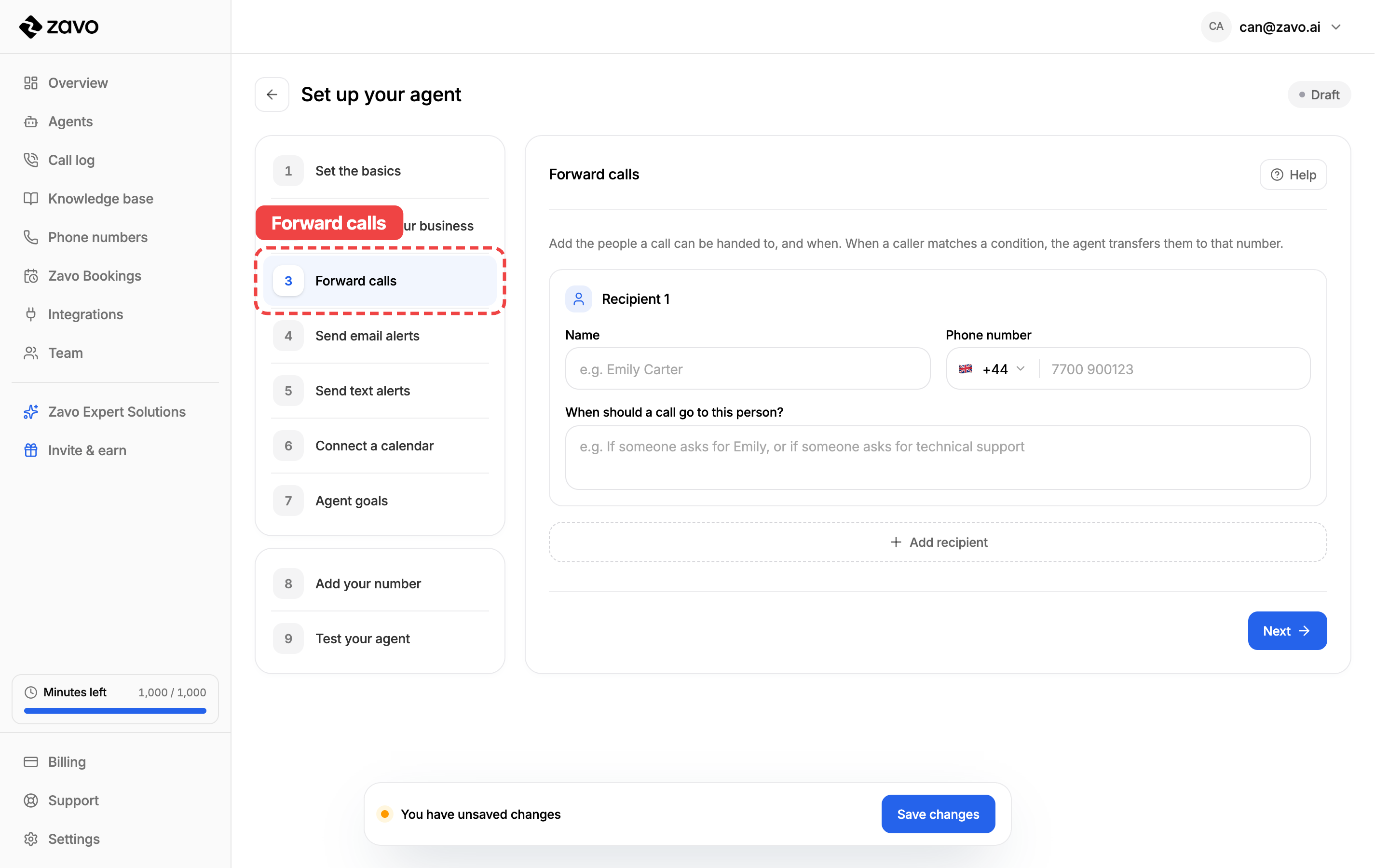
Already have a live agent? Open it from the Agents page, click Edit, and jump to the same Forward calls step.
Step 2: Add the person to forward to
Each person you forward to is a recipient. Fill in three things:
- Who to forward to — the person's name, like Emily Carter. This is just for you, so you can tell your recipients apart.
- Their number — pick the country (the dialling code updates automatically), then type the phone number to ring them on. It can be any phone — a mobile, a desk phone, or another line.
- When to forward — describe, in your own words, when a call should go to this person.
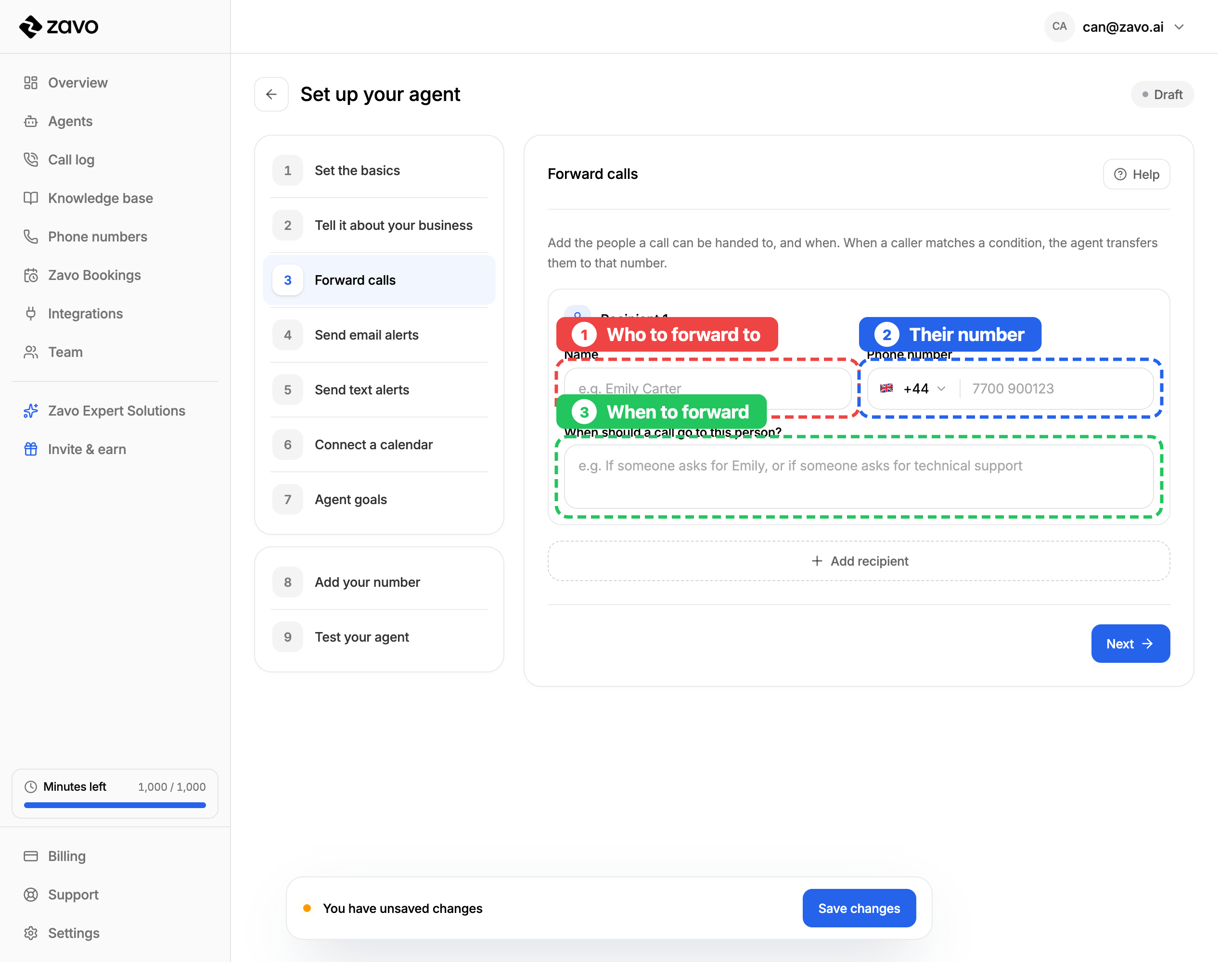
The when is the important part — your agent reads it and decides on the call. Write it the way you'd explain it to a new receptionist:
- "If someone asks for Emily."
- "For anything about a refund or a complaint."
- "If the caller says it's urgent or an emergency."
- "When someone wants to speak to the accounts team."
Step 3: Forward anywhere in the world
Your recipient doesn't have to be in the same country as your agent. Open the country picker to choose from the United Kingdom, United States, Ireland, France, Germany, Spain, Italy, the Netherlands, Australia, Canada, India, and the United Arab Emirates — then enter the local number.
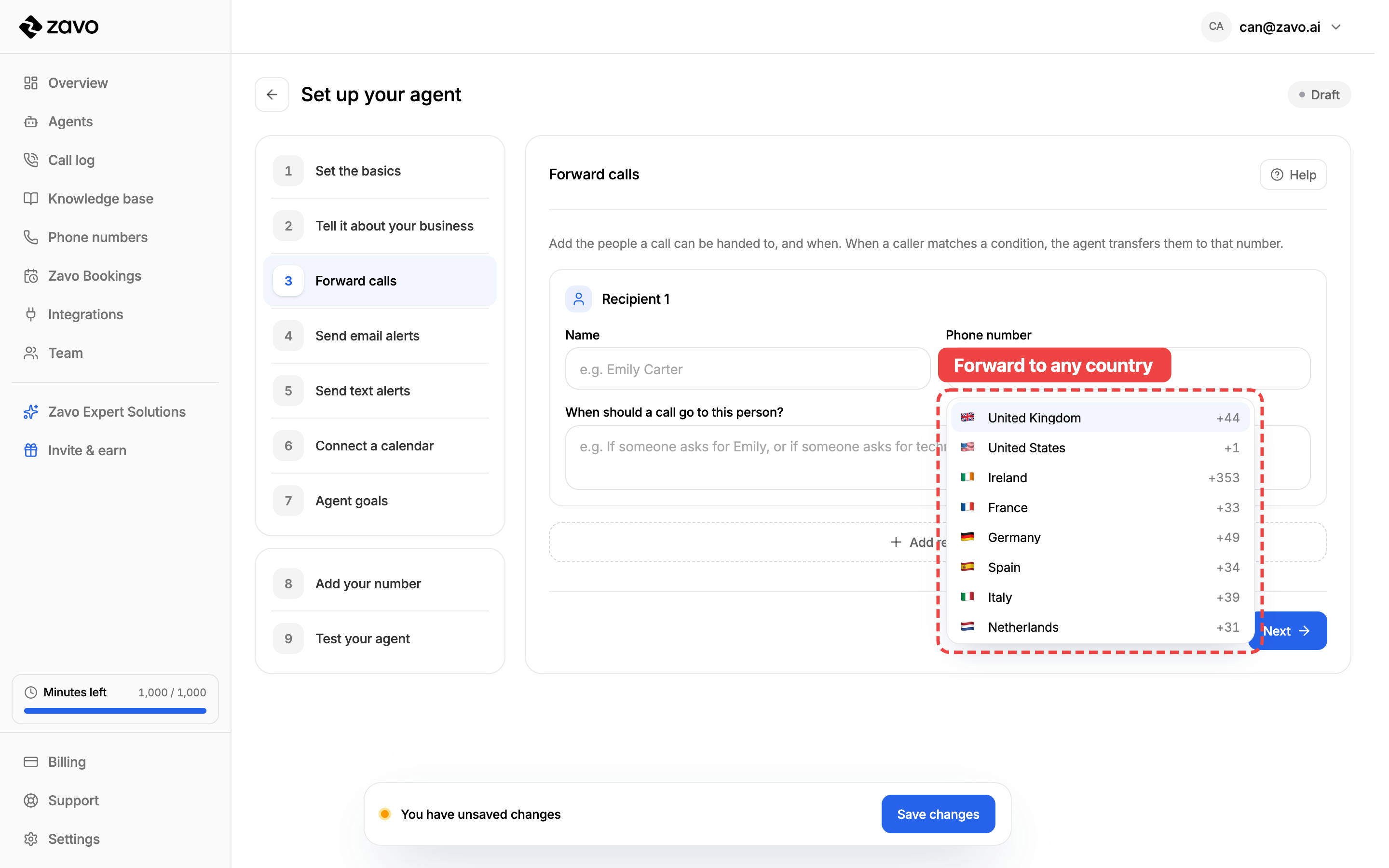
Enter the number the way you'd dial it locally — you can leave off the leading zero. Zavo combines it with the country's dialling code for you.
Step 4: Add as many people as you like
Need to route different callers to different people? Click Add recipient to add another, each with their own number and their own when. Your agent picks the right one based on what the caller says.
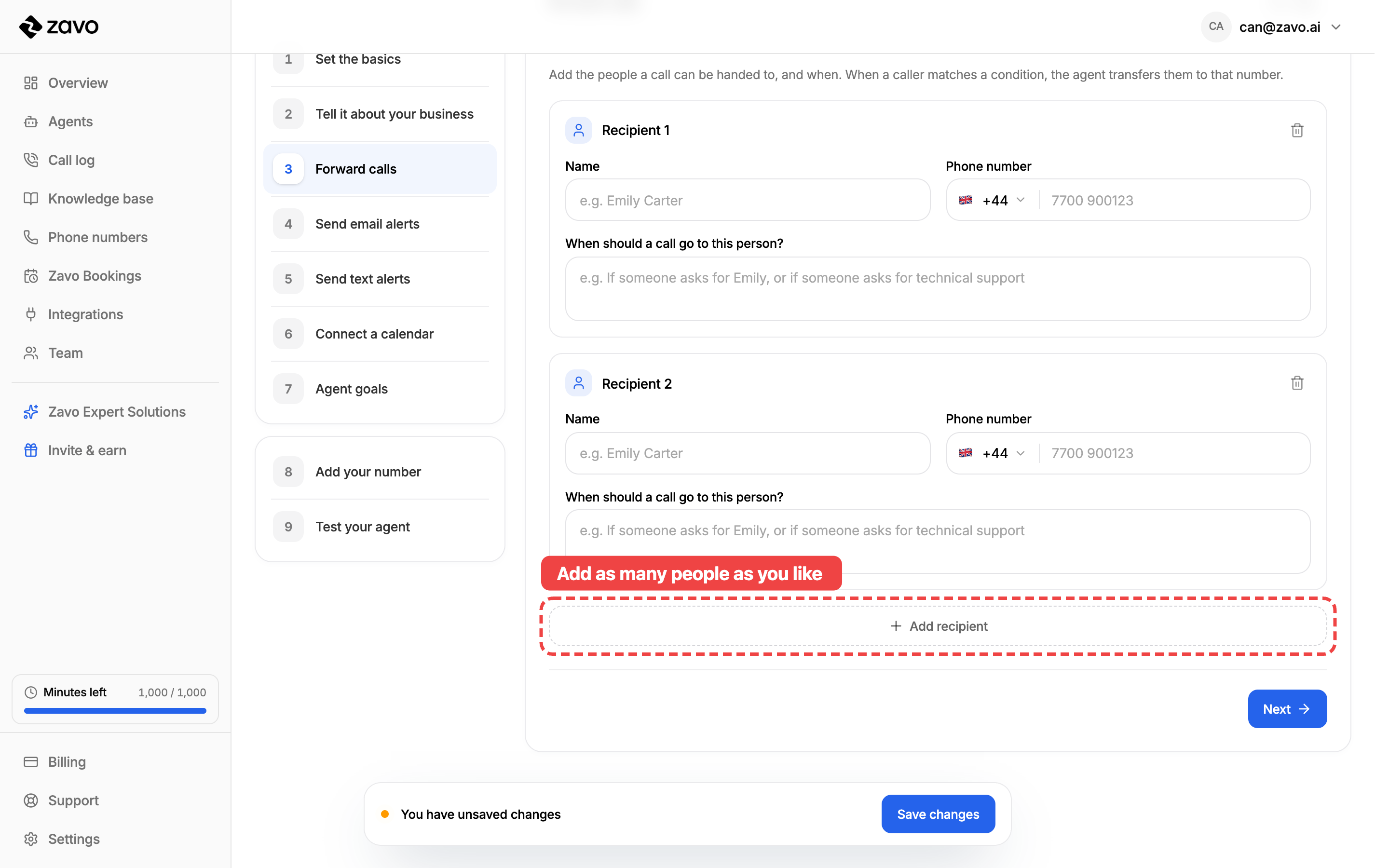
For example, you might forward "anyone asking about bookings" to your front desk, and "anything about an invoice" to accounts. To remove a recipient, click the bin icon in the top-right of their card.
Step 5: Save
Click Save changes, and forwarding is live the next time your agent takes a call. You can come back and edit, add, or remove recipients whenever you like.
That's it — your agent now knows exactly when to bring a human in. 🎉
No number? No problem.
You don't have to forward at all. If you leave this step empty, your agent simply handles every call itself — taking messages or answering questions instead of transferring.
Tips for smooth transfers
- Be specific about when. "If they ask for the manager" works far better than "if it's important" — the clearer the condition, the better your agent routes the call.
- Use one recipient per reason. A separate entry for bookings, refunds, and urgent calls is easier for your agent than one person catching everything.
- Double-check the number. Make sure the country and number are right — a transfer only works if the number can actually be reached.
- Tell people they might get transferred calls. Give your recipients a heads up so they know calls coming from your agent are genuine.
4. Create your agent
Spin up your first AI voice agent — pick a starting point, set the basics, and choose its voice, step by step, with pictures.
6. Set up actions and integrations
Have your agent act after a call — email or text your team with what happened, and book appointments into your calendar. Every setting, step by step.